
A laptop disappears from a train, a car, or a hotel room. A wipe destroys the data, and the user finds an empty device if it comes back. Remote lock for Windows adds a middle option. IT locks the device from Microsoft Intune without wiping it, and the user gets everything back when IT lifts the lock.
Microsoft documents the feature as a preview. This post explains what it does, how to test it with a custom Intune profile, and where it stops, so you can build a response runbook before it reaches your fleet.
Preview status: read this first
- Microsoft labels the feature Remote lock for Windows Devices (Preview) in the Windows documentation.
- The Windows Insider release notes mention Remote Lock for the first time in the Experimental (Future Platforms) channel build 29708.1001, released on 13 November 2026.
- Microsoft says builds in that channel are not matched to any specific Windows release. Features in those builds can change, can be removed, and might never ship beyond Windows Insiders.
- The Learn page names no production Windows version or update for the feature. It lists the supported editions (Enterprise, Education, and Pro) and join types, and nothing more.
Test it on an Insider device or a lab device. Do not build your incident response on it yet.
What remote lock does
When you lock a device, Windows signs out every active session, hides all sign-in options, and shows a locked screen. Microsoft lists these properties:
- Nothing is erased. The device stays enrolled and managed, BitLocker stays on, and user data stays in place.
- The lock survives restarts and offline use. It holds while the device has no network connection.
- Only an admin can lift the lock from Intune. The user picks up where they left off after the unlock.
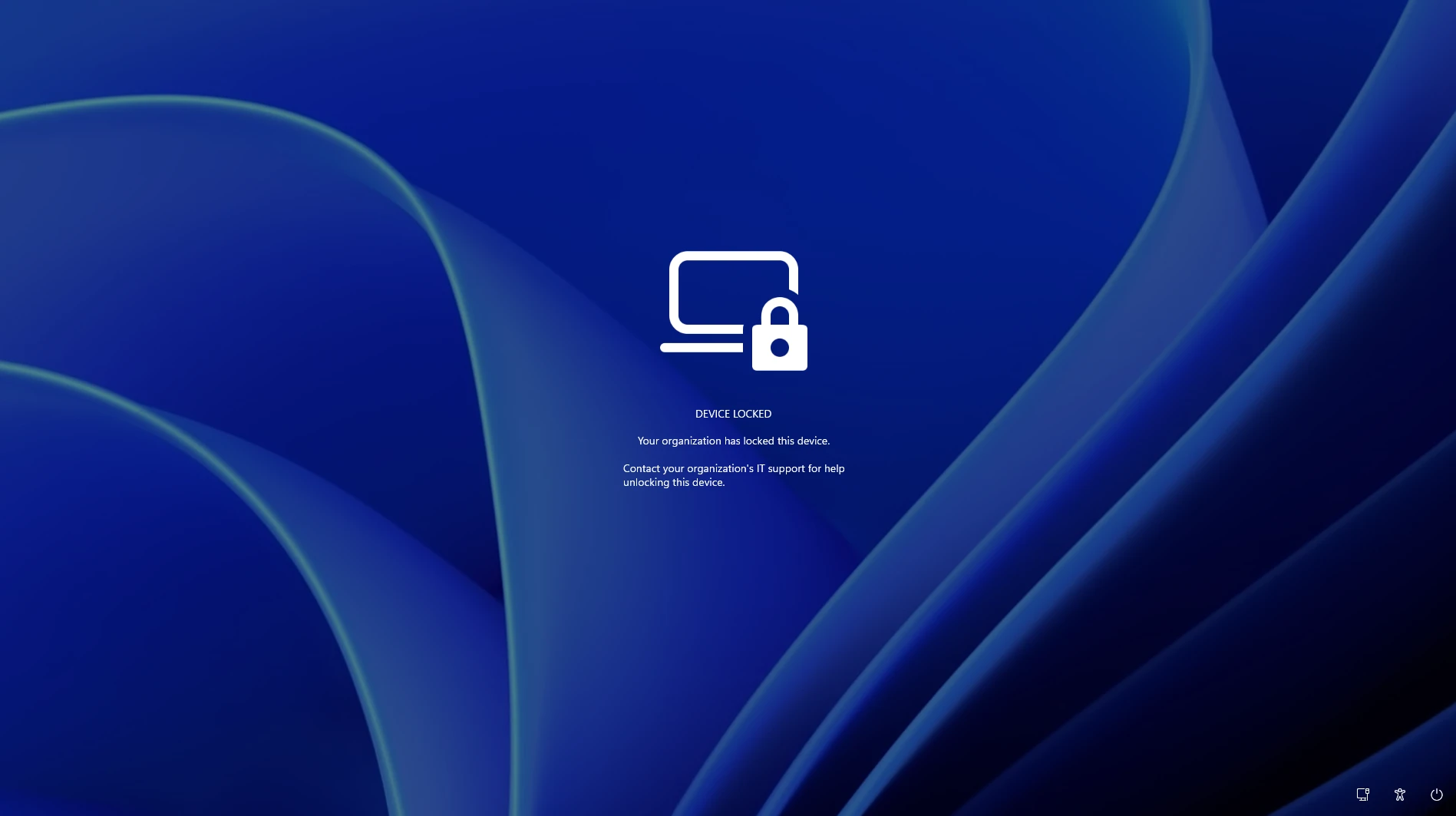
The default lock screen shows a laptop and padlock icon with the text “Device locked. Your organization has locked this device. Contact your organization’s IT support for help unlocking this device.” You can add your own reason and a help desk contact with two optional settings, LockReason and RecoveryHint.
Requirements
- Windows Enterprise, Education, or Pro.
- Devices that are Microsoft Entra joined, Microsoft Entra hybrid joined, or MDM-enrolled.
- Microsoft Intune with permission to create custom configuration profiles and manage groups.
- A build that contains the feature. Microsoft names Windows Insider Experimental build 29708.1001 in its release notes, and the Learn page names no other build.
Set up remote lock in Intune
In the preview, Intune has no dedicated button for this. You configure remote lock with a custom OMA-URI profile and use group membership as the trigger.
Step 1: Create the lock profile
- In the Microsoft Intune admin center, go to Devices > Windows > Configuration > Create > New policy.
- Select Windows 10 and later as the platform, then Templates > Custom.
- Name the profile, for example “Remote lock – ON”, and add the settings from the table below with
LockStateset to 1.
| Setting | OMA-URI | Data type | Value |
|---|---|---|---|
| Lock state (required) | ./Device/Vendor/MSFT/RemoteDeviceLock/LockState | Integer | 1 locks the device, 0 unlocks it |
| Lock reason (optional) | ./Device/Vendor/MSFT/RemoteDeviceLock/LockReason | String | The reason on the lock screen, up to 1,024 characters |
| Recovery hint (optional) | ./Device/Vendor/MSFT/RemoteDeviceLock/RecoveryHint | String | Your help desk contact, up to 256 characters |
A short reason and a phone number or email address are enough, for example a reason of “This device was reported lost” and a hint with your help desk number.
Step 2: Assign the profile to a lock group
Assign the profile to a device group that you reserve for locked devices. To lock a device, add it to that group. The lock applies at the next check-in of the device.
Step 3: Create the unlock profile
Create a second custom profile with the same LockState setting and the value 0, and assign it to a second group, the unlock group. To unlock a device, move it from the lock group to the unlock group.
Read the status
The read-only Status node reports the effective state of the device: 0 is unlocked, 1 is locked, 2 is lock pending, and 3 is an error.
Practical tips
- Speed up the check-in. After you add a device to the lock group, run the Sync device action in Intune so the device checks in and receives its pending policy sooner.
- Use static groups for lock and unlock. A static group changes when you change it. Rules in a dynamic group add a delay between your decision and the lock.
- Restrict who edits the lock group. Anyone who can add a device to that group can lock it. Treat that permission like a privileged role, and review the group membership on a schedule.
- Plan the unlock. Unlock arrives only through Intune, so the device needs a network connection to receive the unlock profile. Keep your unlock runbook and the help desk number from the recovery hint close together.
- Test first. Lock a lab device, restart it, take it offline, and confirm the lock holds. Then unlock it and check the state in the
Statusnode.
What remote lock does not do
Microsoft lists four limits. Each one shapes your runbook:
| Limit | What you do about it |
|---|---|
| Remote lock does not touch the user’s account. Credentials stay valid, and the user can still sign in on other devices. | Disable the account or revoke the sessions in Microsoft Entra ID. Microsoft’s guide Revoke user access in Microsoft Entra ID covers the steps. |
| Remote lock does not isolate the device from the network and does not erase data. | Use the existing Intune controls, such as a wipe, when the data must go. |
| There is no offline or local unlock. No PIN, password, local admin account, or web sign-in works on a locked device. | Keep the unlock profile and group ready, and make sure someone with permission can move a device between the groups. |
| Windows Recovery Environment, Safe Mode, and booting from USB or other media stay available. | Keep BitLocker on. It protects the data when someone removes the drive or reinstalls the device. See Silently Enforce BitLocker with Intune. |
A runbook for a lost device
A response that uses remote lock, based on the documented behavior:
- Add the device to the lock group and run Sync on it in Intune.
- Revoke the user’s sessions in Microsoft Entra ID, or disable the account if you suspect a compromise. The lock does not do this for you.
- Check the
Statusnode to confirm the device reports locked. A status of 2 means the lock is pending, and a status of 3 means an error. - Confirm that BitLocker is on for the device in the Intune encryption report.
- If the user finds the device, move it to the unlock group and let it check in.
- If the device does not come back, run a wipe with the existing Intune controls.
Remote lock compared with the existing options
The existing Remote lock device action in Intune lists Android and iOS/iPadOS as supported platforms, and the Company Portal documentation describes the same two. Remote lock for Windows brings a lock-without-wipe option to Windows. The data stays on the device, the device stays managed, and nobody can use it.
What to do now
- Read Remote lock for Windows Devices (Preview) on Microsoft Learn.
- Build the lock and unlock profiles and groups on a lab tenant or a test group.
- Test on a Windows Insider device, and send your findings to Microsoft as feedback.
- Write the runbook, including the Entra ID steps for sessions and accounts.
- Wait for Microsoft to name a production Windows release before you rely on it for the fleet.
Questions or feedback? Leave a comment below.
Leave a Reply