
If you manage a modern workplace using Microsoft Intune, you are likely intimately familiar with the headache of BYOD (Bring Your Own Device) scenarios. One of the most common helpdesk triggers happens when a user signs into a Microsoft 365 app like Teams or Outlook on their personal Windows computer.
They are presented with the infamous checkbox: “Allow my organization to manage my device.”
If they leave this checked (which is the default behavior), their private PC can accidentally be enrolled into your corporate Mobile Device Management (MDM). This leads to frustrated users, privacy concerns, and unnecessary clean-up for the IT department.
Thankfully, as of early 2026, Microsoft has released a highly anticipated feature in Public Preview within the Microsoft Intune admin center that allows admins to completely disable this prompt for private Windows devices.
Here is everything you need to know about the new setting and how to enable it.
Why This Setting is a Game-Changer
Historically, preventing accidental MDM enrollment on Windows BYOD required tweaking Entra ID (Azure AD) device settings, restricting MDM user scopes, or relying on user education, which, let’s face it, is never 100% foolproof.
With this new Intune preview feature, IT admins can ensure that when a user signs into a corporate app on an unmanaged device, they are silently authenticated using MAM (Mobile Application Management) or simply registered without the confusing “Allow my organization to manage my device” dialog box appearing at all.
- The user gets seamless access to their apps.
- The device remains strictly a personal device.
- The IT helpdesk gets fewer tickets.
How to Enable the New Toggle
- Sign in to the Microsoft Intune admin center.
- Navigate to Devices > By platform > Windows.
- Under Device onboarding, select Enrollment.
- Select Windows > Automatic Enrollment.
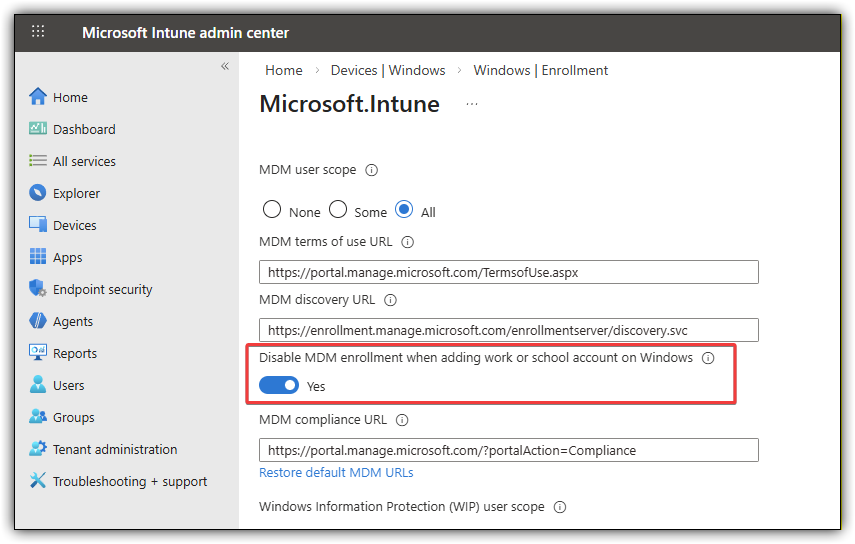
- Find the setting: Disable MDM enrollment when adding work or school account on Windows.
- Toggle this setting to Yes and click Save.
The End-User Experience
Once the policy has synced, the next time a targeted user downloads a Microsoft 365 app on their personal Windows machine and signs in, they will only be asked to authenticate. The confusing “Allow my organization to manage my device” checkbox will be completely hidden.
Instead, the app will simply register at the app level (if MAM policies are in place) or prompt them to “Sign in to this app only,” keeping their personal operating system untouched by corporate policies.
Conclusion
This new addition to the Intune admin center is a massive quality-of-life improvement for both IT administrators and end-users. If you have a BYOD environment, I highly recommend testing this out in a pilot group while it sits in Public Preview.
Leave a Reply