
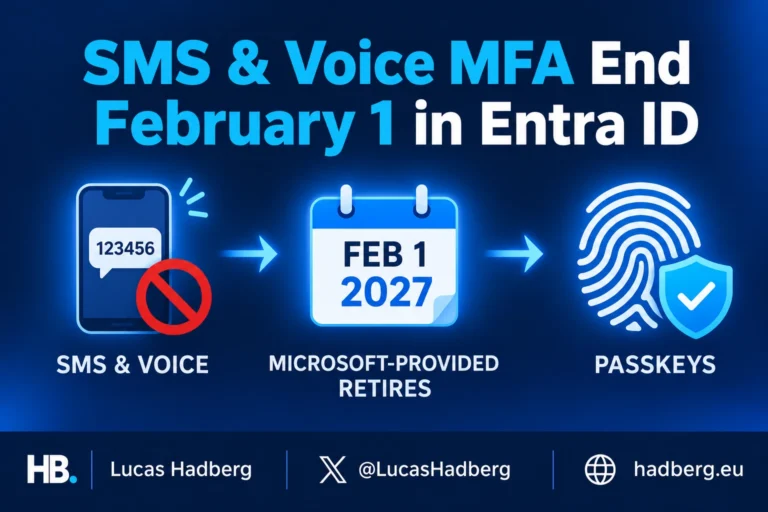
In SMS and Voice MFA End on February 1: Your Entra ID Migration Checklist I pointed out a gap. You move users to passkeys, but passkeys don’t count as an SSPR method. A passwordless user who forgets the password they never type still needs it for that one old app, and SSPR turns them away. Microsoft promised a fix, and it’s here: a setting called Allow password change after secure sign-in.
What the setting does
With the setting on, a user who signs in with a passwordless method can open Security info and set a new password without typing the current one. Three sign-in methods qualify:
- A passkey (FIDO2)
- Microsoft Entra certificate-based authentication (CBA)
- A Microsoft Authenticator passwordless phone sign-in notification
This flow runs outside SSPR. Users don’t need to register for SSPR, and the number of methods your SSPR policy requires doesn’t apply. So the passkey users from the SMS migration can change their password even though SSPR ignores their passkey.
Turn it on
You need the Authentication Policy Administrator role, and your users need Microsoft Entra ID P1 or P2.
- Sign in to the Microsoft Entra admin center.
- Go to Entra ID > Authentication methods > Policies.
- Select Password, then Configure.
- Enable Allow password change after secure sign-in.
- Select Save.
The setting covers the whole tenant. You can’t target a pilot group or exclude anyone, so read the rest of this post before you flip it.
What your users do
- Open Security info.
- Sign in with a passkey, CBA or Authenticator phone sign-in.
- Select Change next to Password.
- Enter and confirm the new password, then select Submit.
Nobody asks for the old password. Add these four steps to the end-user material you send out for the passkey rollout, because users won’t find the option on their own.
Hybrid tenants need password writeback
Where the new password lands depends on your setup:
| Environment | Result |
|---|---|
| Cloud-only | Entra ID updates the password. |
| Hybrid with password writeback | Entra ID updates the password and writes it back to Active Directory. |
| Accounts that exist only on-premises | Not supported. My Sign-Ins can’t manage them. |
For synced users without writeback, check your writeback setup before you announce the feature.
A password change, not account recovery
The feature helps users who still hold their passkey and forgot their password. Users who lose the passkey need a different path:
| The user has | Path |
|---|---|
| Their passkey, but forgot the password | Password change from Security info (this feature) |
| Only the password, the passkey is gone | Account recovery, or an admin issues a Temporary Access Pass so they can register a new passkey |
If your Conditional Access policies require phishing-resistant MFA, a Temporary Access Pass doesn’t satisfy them. Plan your recovery flow so a user with a fresh TAP can still reach the passkey registration page.
My recommendation
Turn it on in any tenant that runs the SMS-to-passkey migration. It closes the SSPR gap for passkey users with one switch. Your users need Entra ID P1 or P2, which Microsoft 365 E3, E5 and Business Premium include.
Two things to settle first. One: the setting trusts Authenticator phone sign-in as much as a passkey or CBA, and phone sign-in isn’t phishing-resistant. Microsoft’s own example pairs the setting with a Conditional Access policy that requires the built-in Phishing-resistant MFA authentication strength. Where your users can meet that, do the same. Two: keep the SSPR fixes from the SMS checklist. Users who still sign in with a password and SMS need Email OTP or another SSPR method after February 1.
Source: Microsoft Learn: How self-service password reset works, Allow password change after secure sign-in
Related reading: Go Passwordless with Microsoft Authenticator

Leave a Reply